360 Browser Installation Guide
 360 Secure Browser
Video Tutorial
Video Description
The video shows the complete installation process, applicable to all Chromium-based browsers.
Offline Installation (ZIP Loading)
360 Browser Note
360 Secure Browser is based on the Chromium engine and supports loading unpacked extensions. Since 360's own extension store has not listed the extension yet, please use the following offline installation method.
Step 1: Download the ZIP Package
Download sentinelseller-extension-1.0.1.zip from the official website.
Step 2: Extract to a Fixed Folder
Extract the ZIP file to a fixed directory (e.g., D:\Extensions\PriceMinder). Do not delete this folder afterwards.
Important
The extracted folder path must not contain Chinese characters or spaces, otherwise the extension may fail to load.
Step 3: Open Extensions Management Page
Type se://extensions/ in the 360 Browser address bar and press Enter to open the extensions management page.
Find the "Developer mode" toggle in the upper right corner of the page and turn it on.
Invalid URL?
Some versions of 360 Browser may use different extension management URLs. If se://extensions/ does not work, try clicking the Menu button in the upper right corner → "Extensions" → "Extension Management".
Step 4: Load Unpacked Extension
Click the "Load unpacked extension" button on the page, select the extracted folder to complete installation.
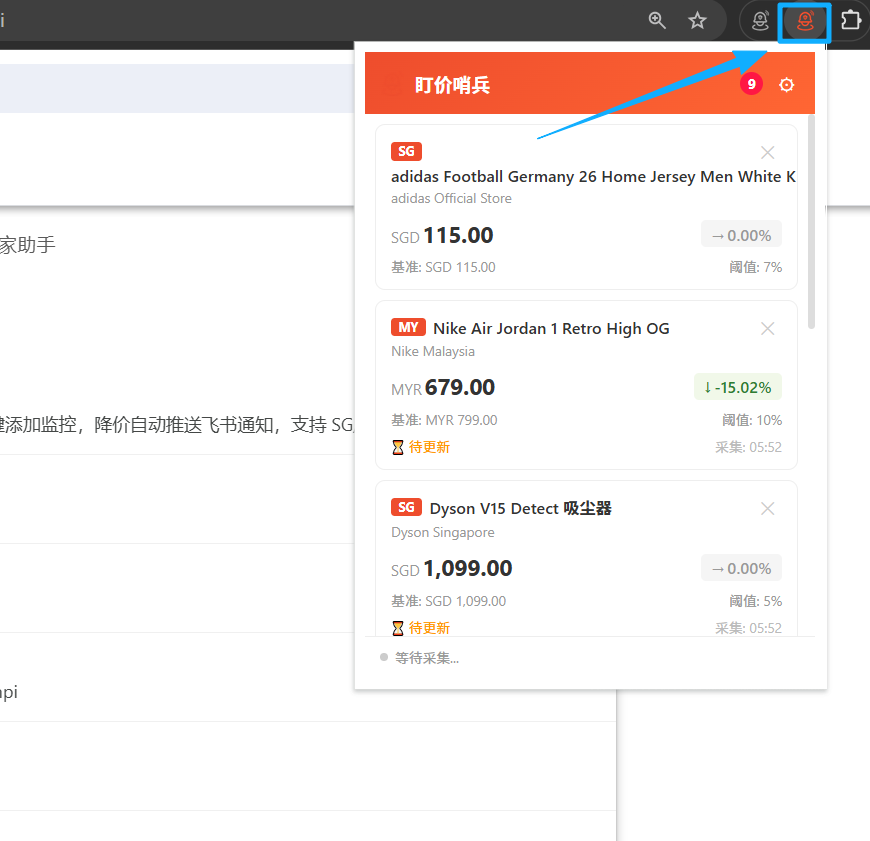
Step 5: Pin to Toolbar
Click the Extensions button in the upper right corner of 360 Browser, find "PriceMinder" and pin it to the toolbar.
Step 6: Start Using
Click the PriceMinder icon on the toolbar to open the extension panel and start using it.
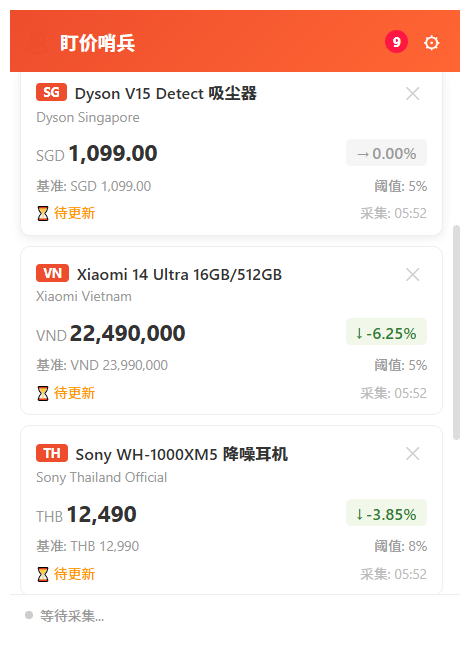
Post-Installation Configuration
Configure Push Notifications
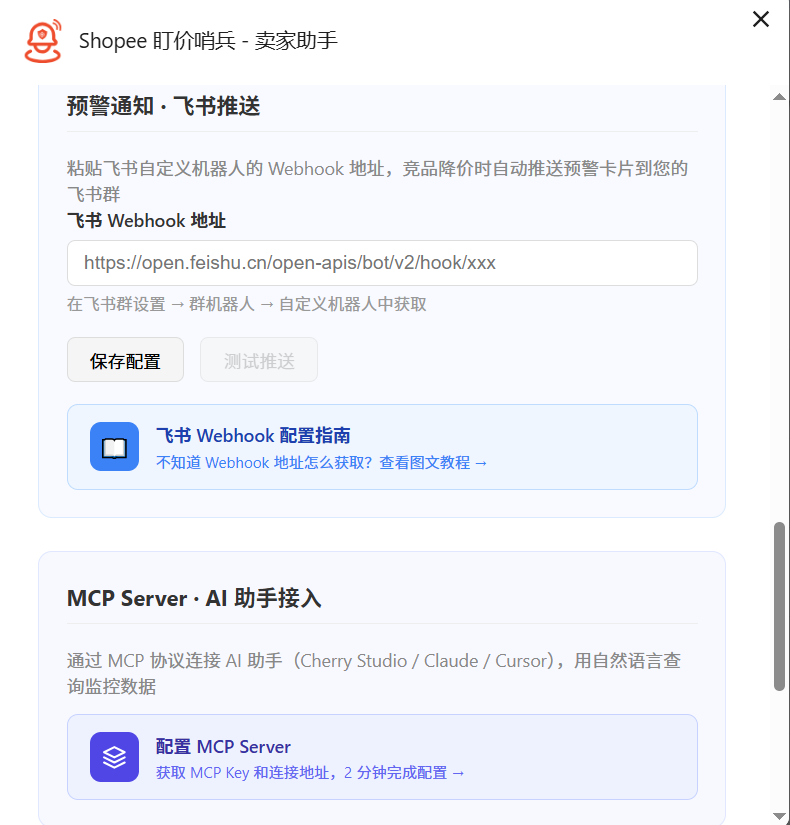
Configure Crawl Interval
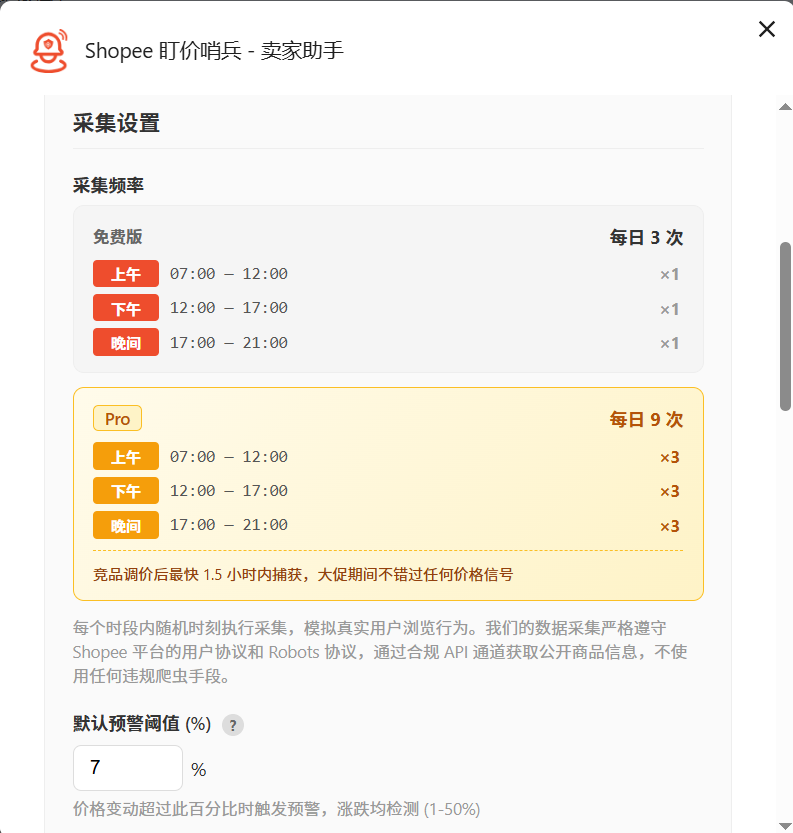
FAQ
Cannot open the 360 Browser extension management page?
Different versions of 360 Browser may use different extension management URLs. Try the following: 1) Type se://extensions/ in the address bar; 2) Click the menu icon in the upper right corner → "Extensions" → "Extension Management"; 3) Type chrome://extensions in the address bar (some versions are compatible).
How is 360 Browser compatibility?
360 Secure Browser is developed based on the Chromium engine, and most Chrome extensions work properly. However, 360 may have additional restrictions on some extension APIs. If you encounter functional issues, it is recommended to use Chrome or Edge browser.
Extension not showing after installation?
Click the Extensions management button in the upper right corner of 360 Browser and check if "PriceMinder" is in the list. If it is in the list but not showing on the toolbar, click the "Show in toolbar" button next to it.